 |
THESE INSTRUCTIONS ARE FOR BOTH THE iOS and ANDROID BOOK TRACKING APP
PLEASE KEEP IN MIND THAT EVERYONE ASSOCIATED WITH THE 1000 BOOKS FOUNDATION IS A NON-PAID VOLUNTEER
BY: GOBLIN JOR |
|
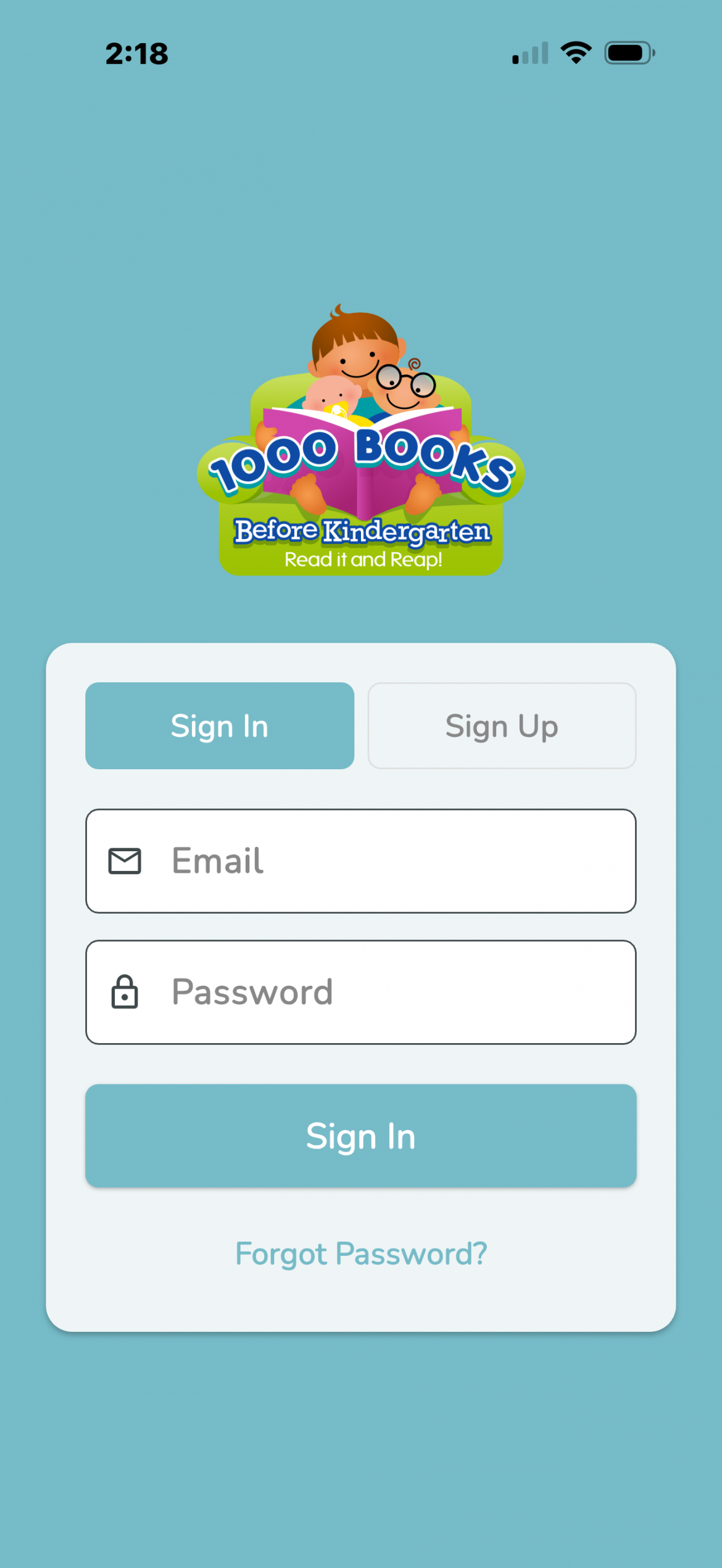
When you first start the 1000 Books Before Kindergarten Book Tracking App, you should see this welcome screen.
If you have previously created an account, simply enter your email address and password and tap “Sign In” to log-in to your account.
If you have not previously created an account, tap “Sign Up” |
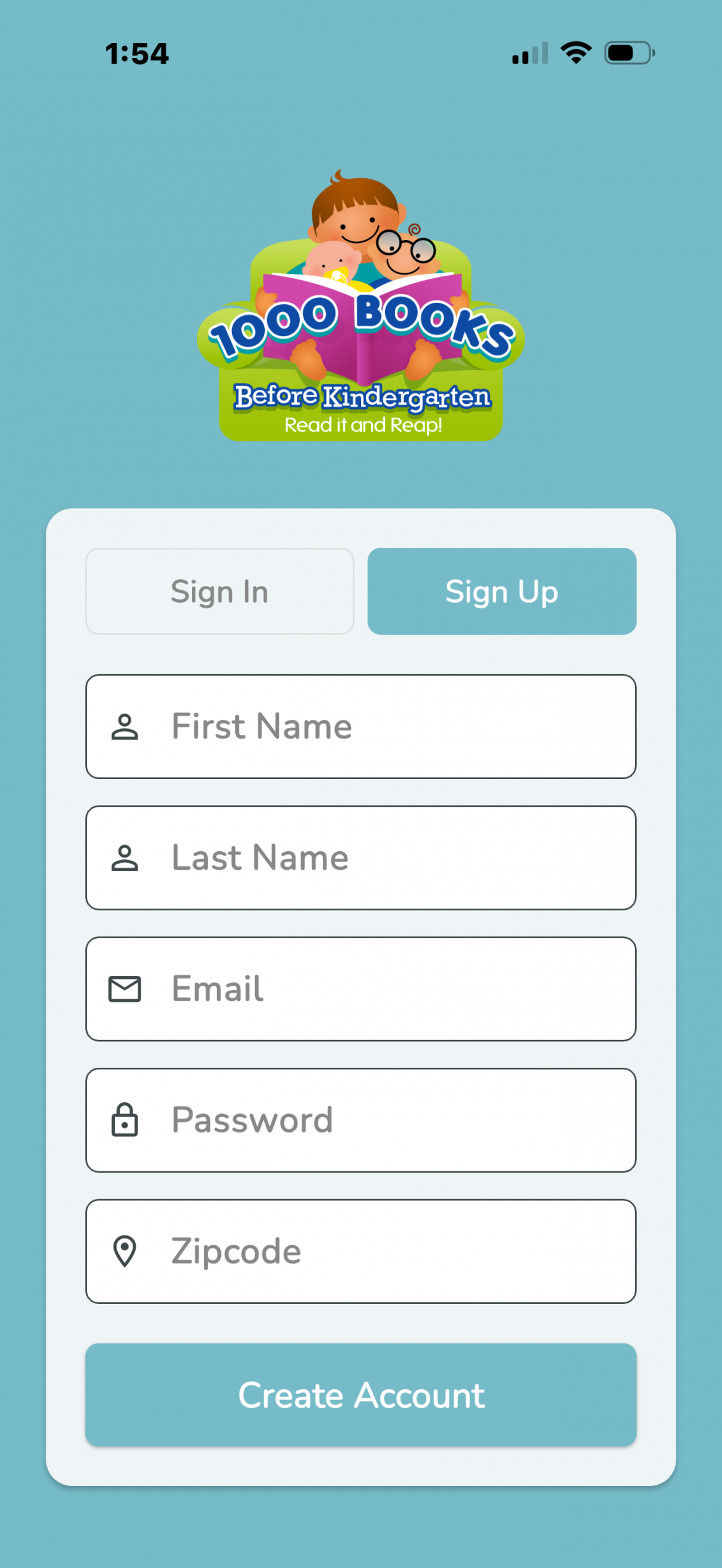 |
If you tapped “Sign Up” you will then be taken to the registration screen. Enter the requested information and then tap “Create Account to complete the registration.
Please make sure that you fill out the information correctly or you may be unable to retrieve your account information. |
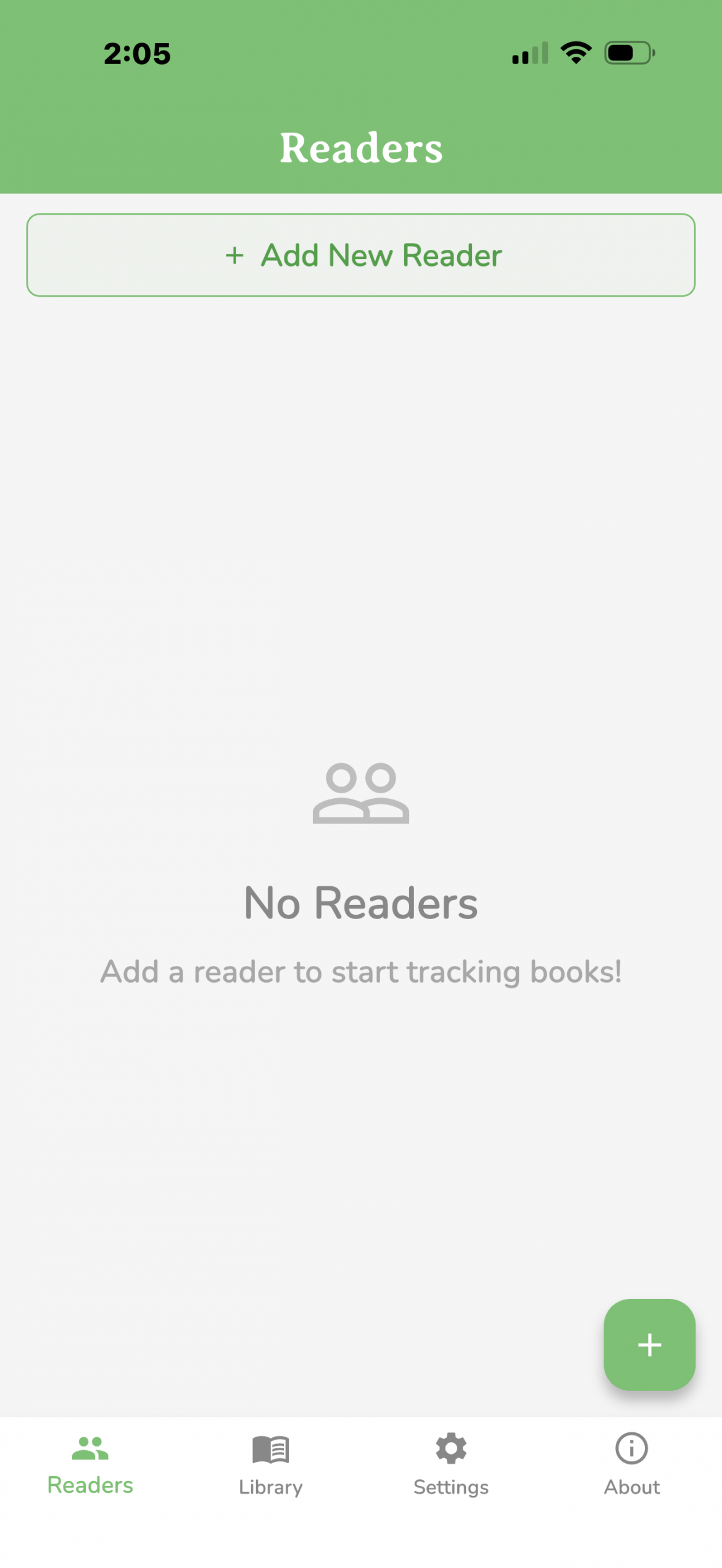 |
The first thing that you should see is the “Readers” notification. Tap “+ Add New Reader” to add your first reader. You can add multiple readers and track their progress separately.
You can also tap the “+” sign in the bottom right hand corner to add your first reader. |
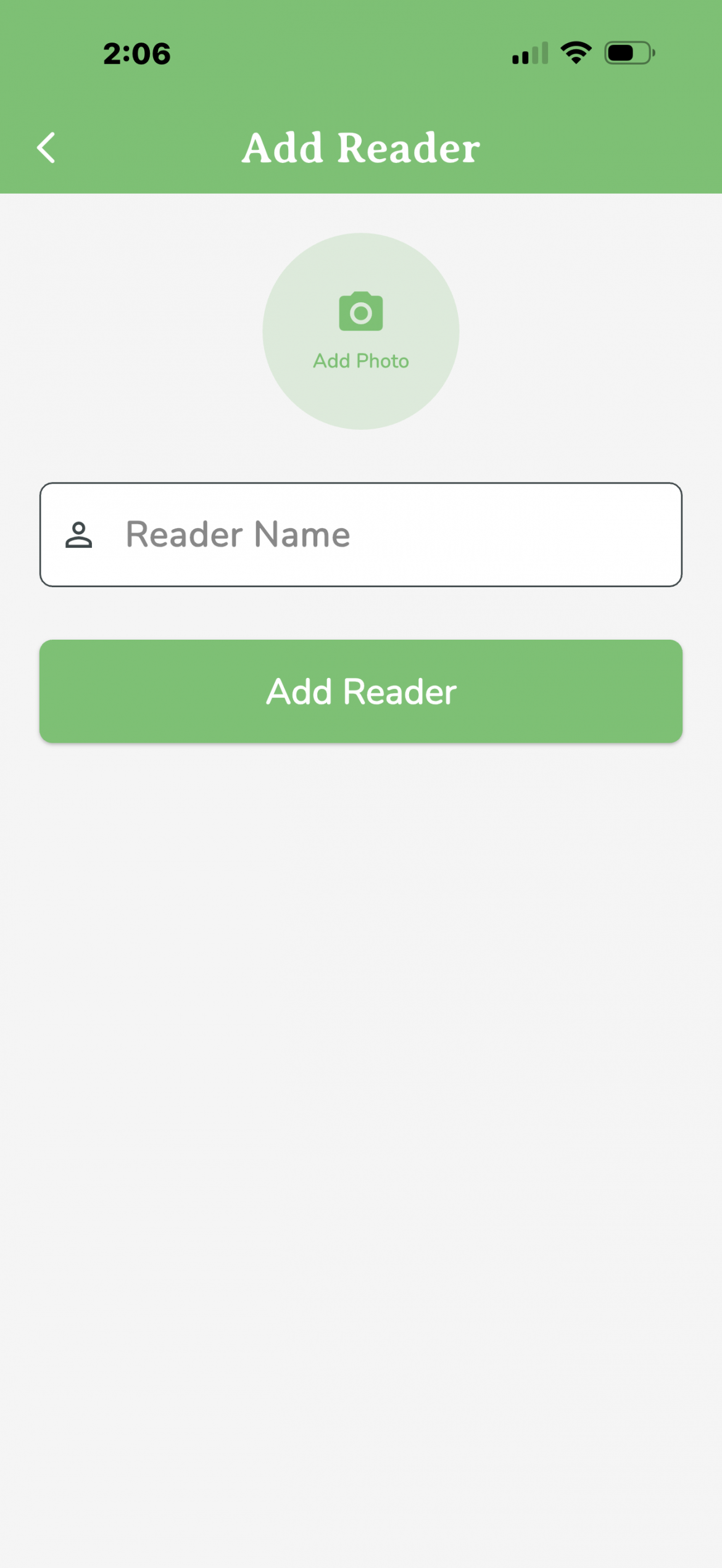 |
Enter you reader’s name. Tap on the Camera Icon (“Add Photo”) if you would like to add a customized picture of you reader. Then Tap “Add Reader” when you are ready.
|
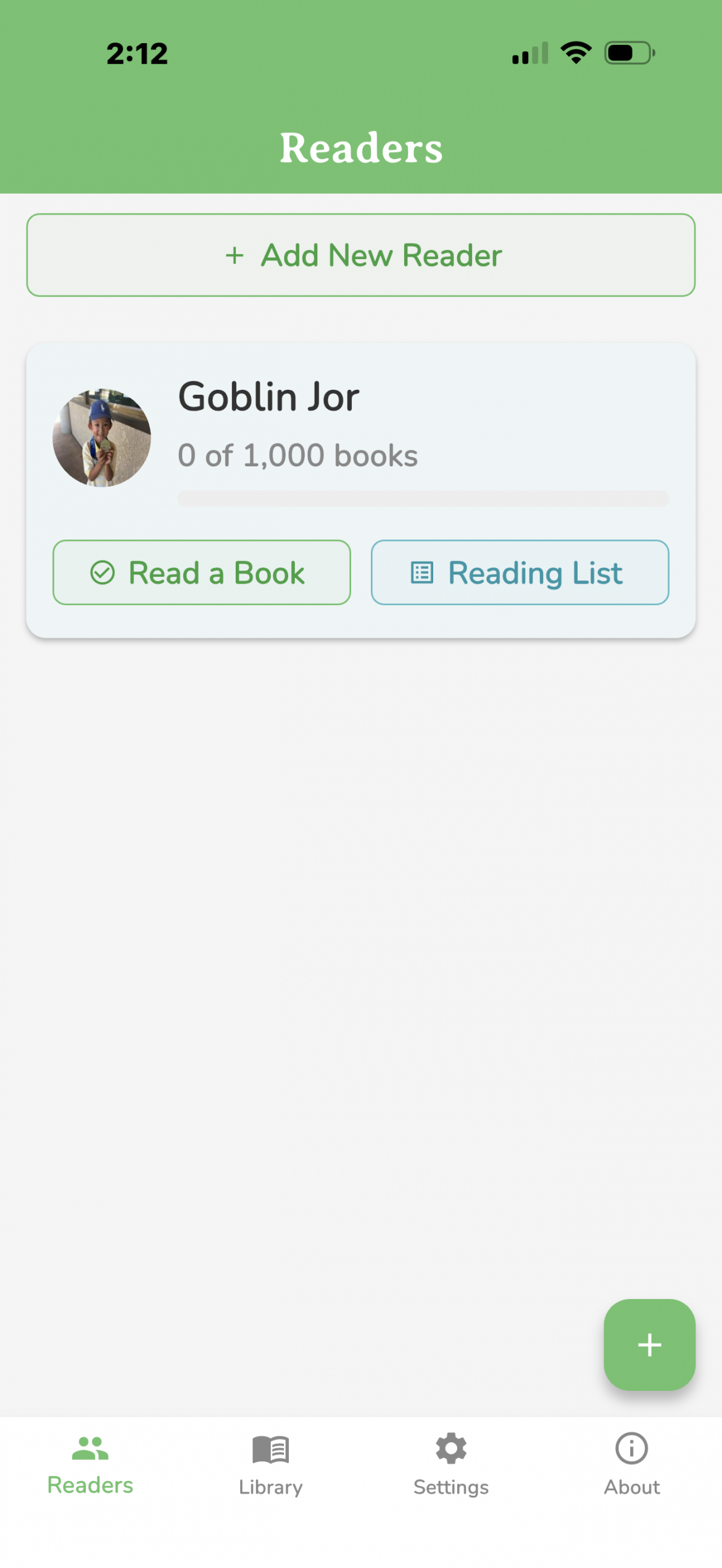 |
After you add a Reader, you are ready to get started. You can mark a book as read by using “Read a Book.” You can also see this Reader’s “Reading List.”
|
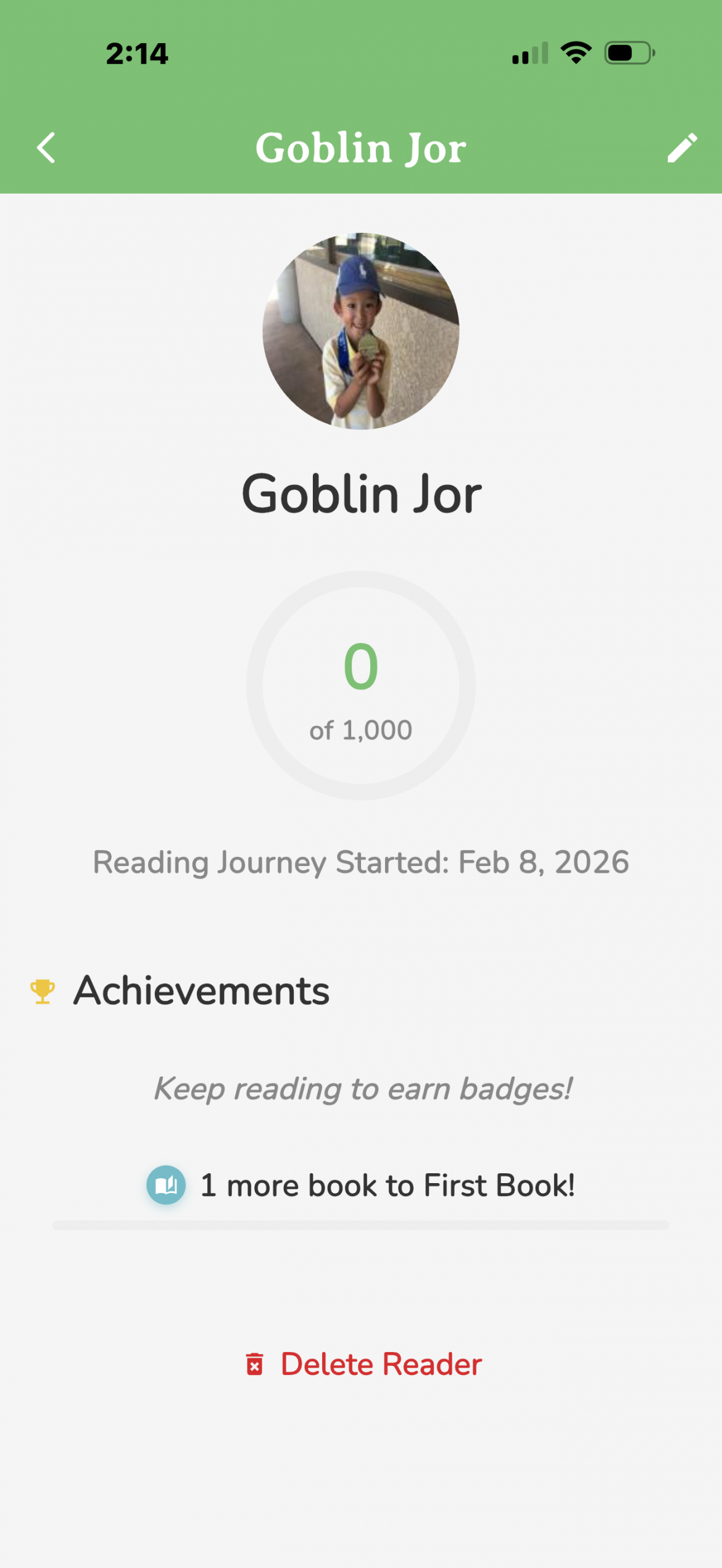 |
If you tap on your Reader, basic details will be brought up. For example, the date your Reader started the challenge and the number of books read. From here, you can also “Delete Reader” or edit Reader information. |
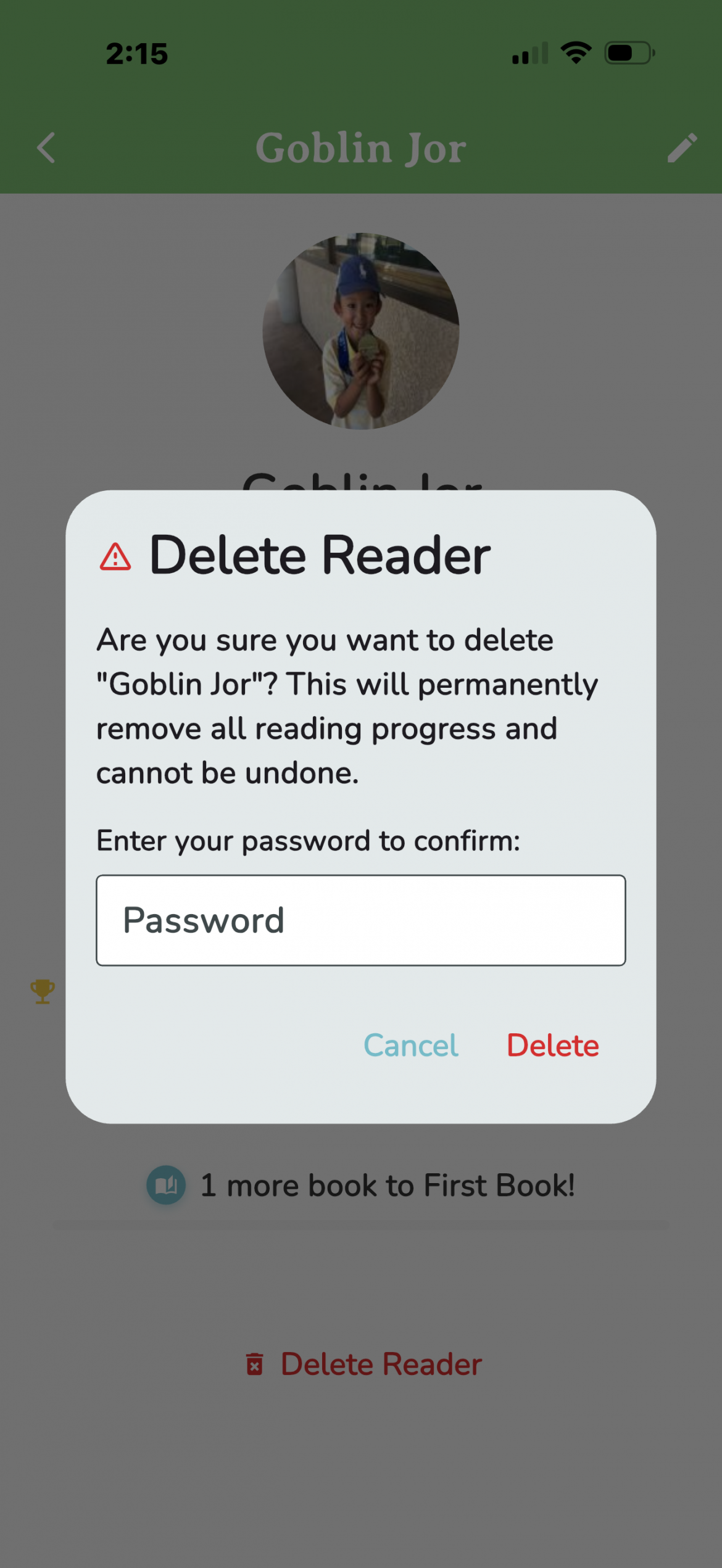 |
NOTE: to delete a reader, you will need to enter your password as confirmation.
|
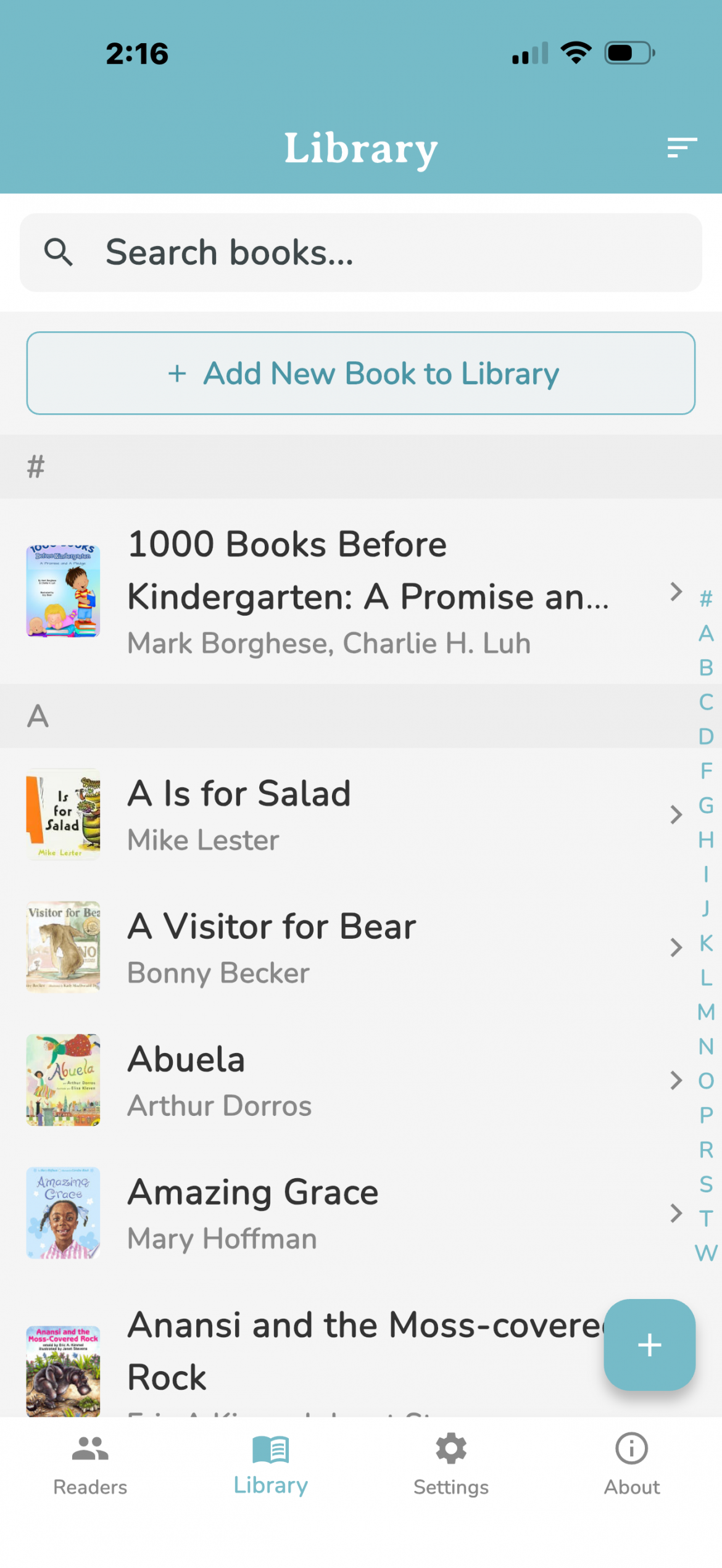 |
To help you use the App faster, we have pre-populated your library with a recommended reading list.
The next step is to begin adding your “LIBRARY” of books. When you tap on the “LIBRARY” tab at the bottom, your library will be displayed. Tap on the “+ Add New Book to Library” or “+” icon to add your books. |
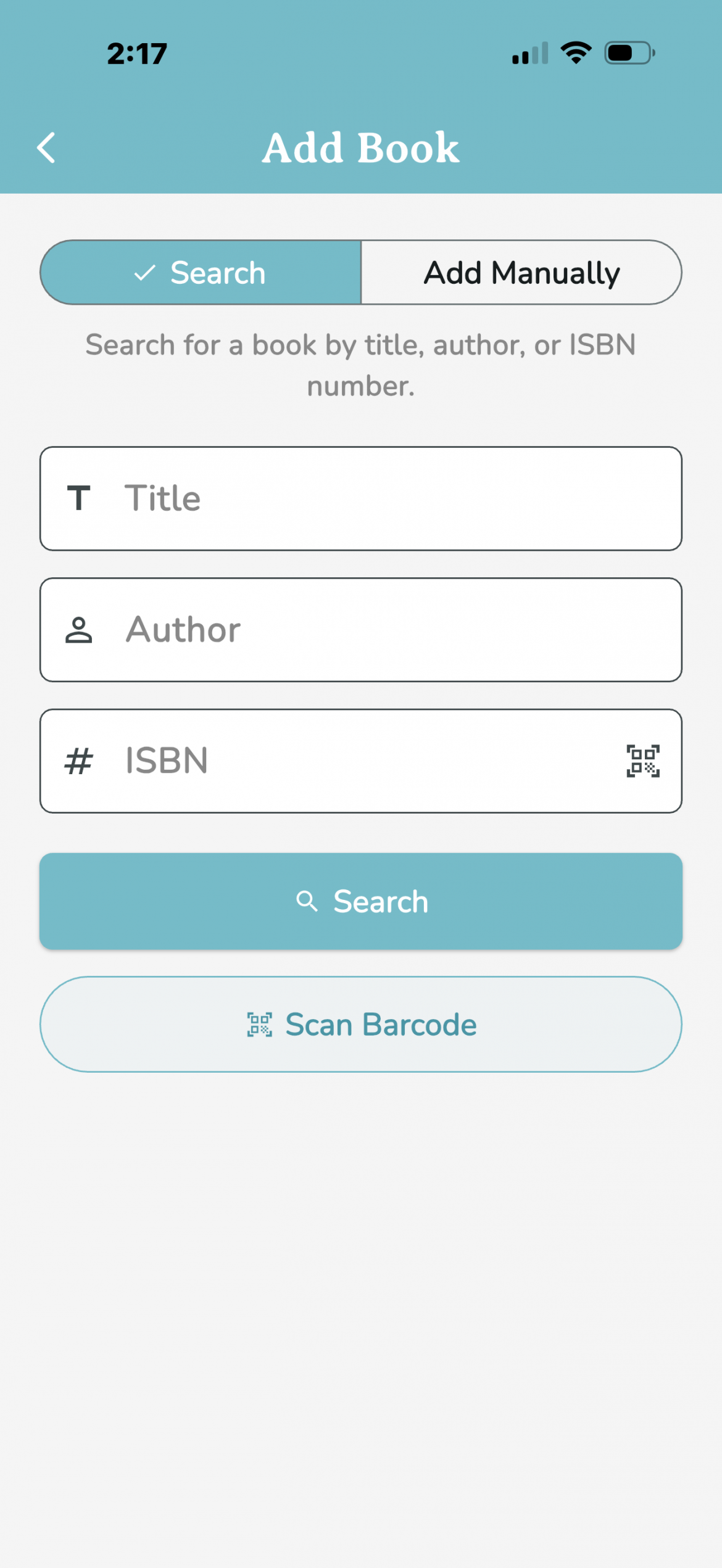 |
You primarily have three ways to “Add a Book”.
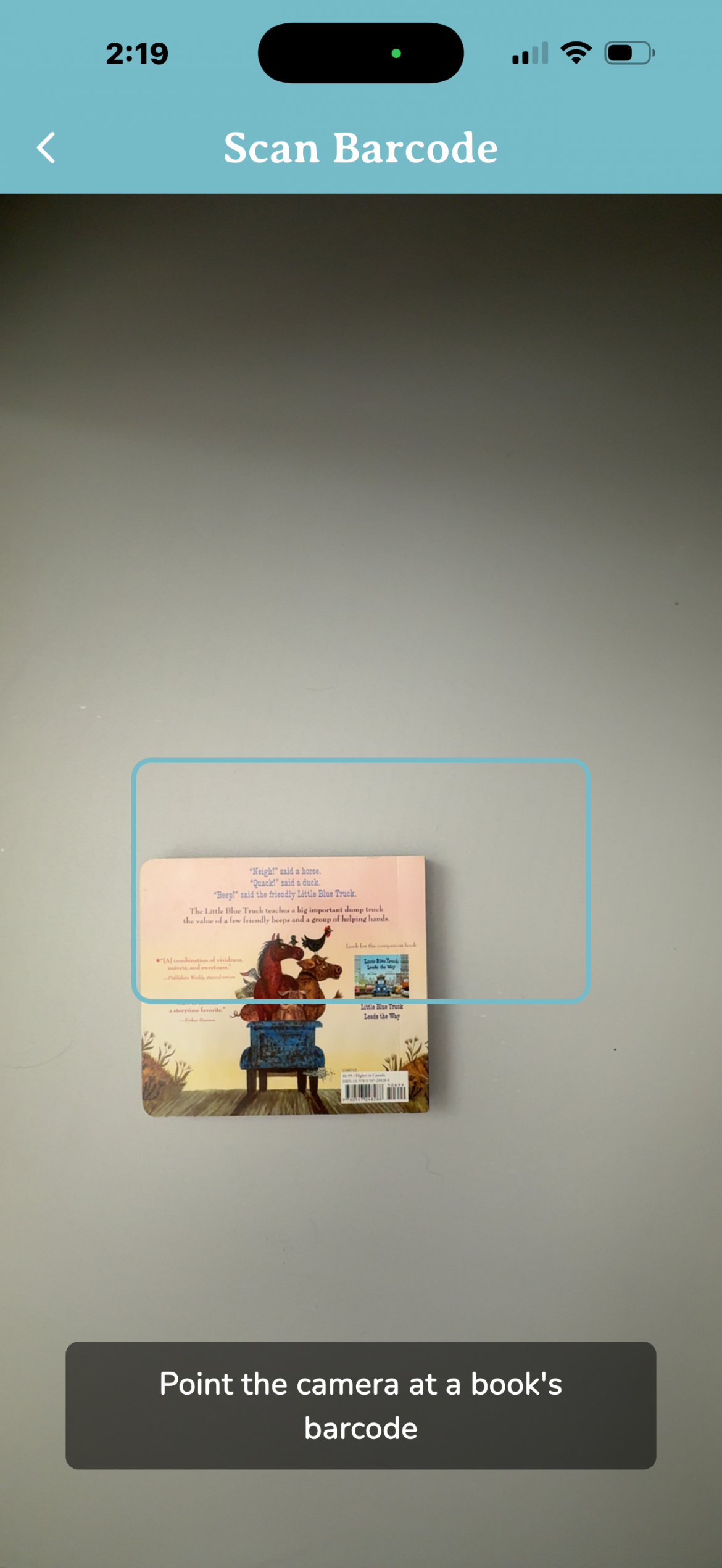
The first way is to “Search for Book”. The second way is to “Scan Barcode”. The third way is to “Add Book Manually”.
|
|
“Search for Book” You can search for books by entering any of the following fields:
1. Title 2. Author 3. ISBN It is recommended that you search using the “ISBN” field. An ISBN is an International Standard Book Number. ISBNs were 10 digits in length up to the end of December 2006, but since 1 January 2007 they now always consist of 13 digits. ISBNs are calculated using a specific mathematical formula and include a check digit to validate the number. Please note that a book can have multiple and different ISBN numbers. However, each ISBN number should be associated with only one book. |
  |
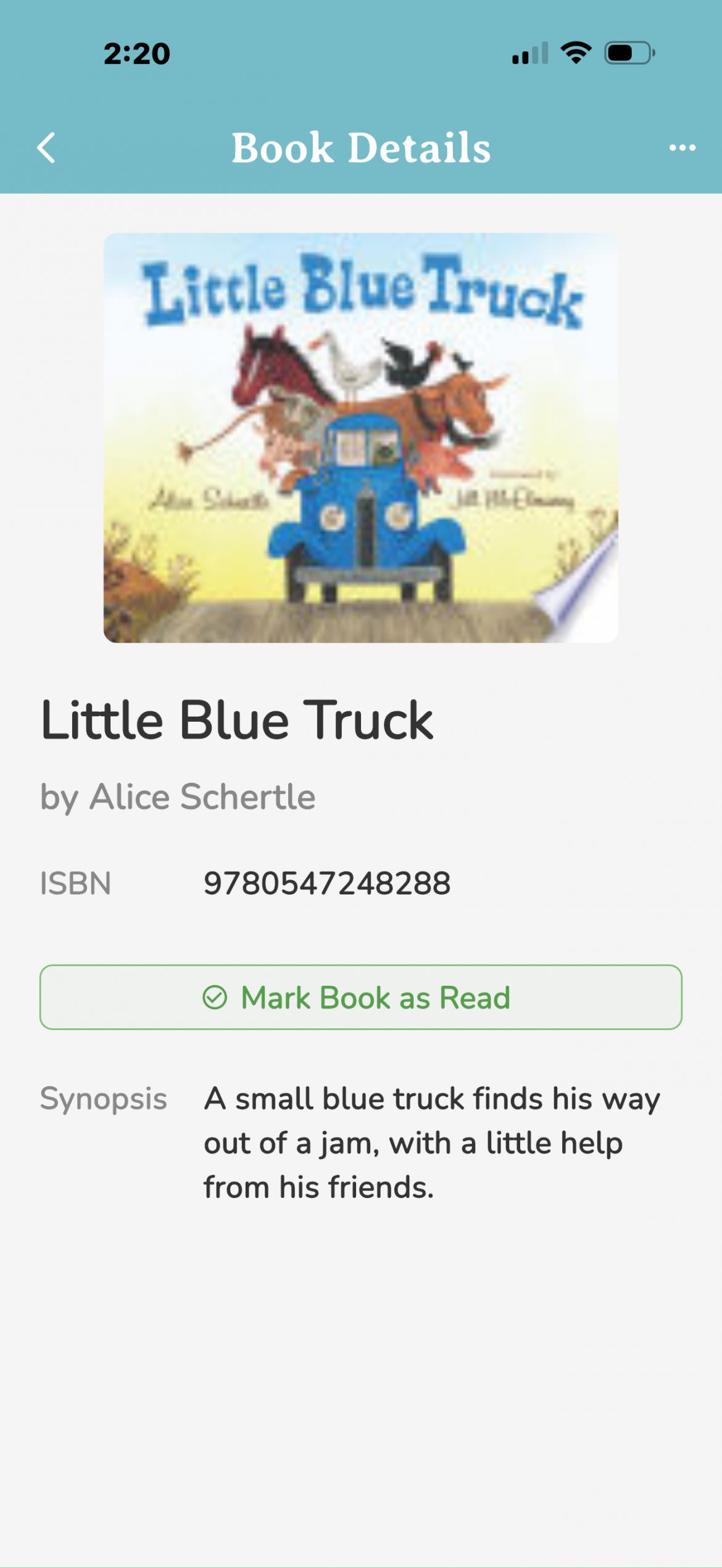
If the book is found in the database, an image of the book and details of the book details will be displayed. You will then be prompted to “Add to Library”. |
 |
You will receive this “Book Added to Library!” message when the book is successfully added to your database. |
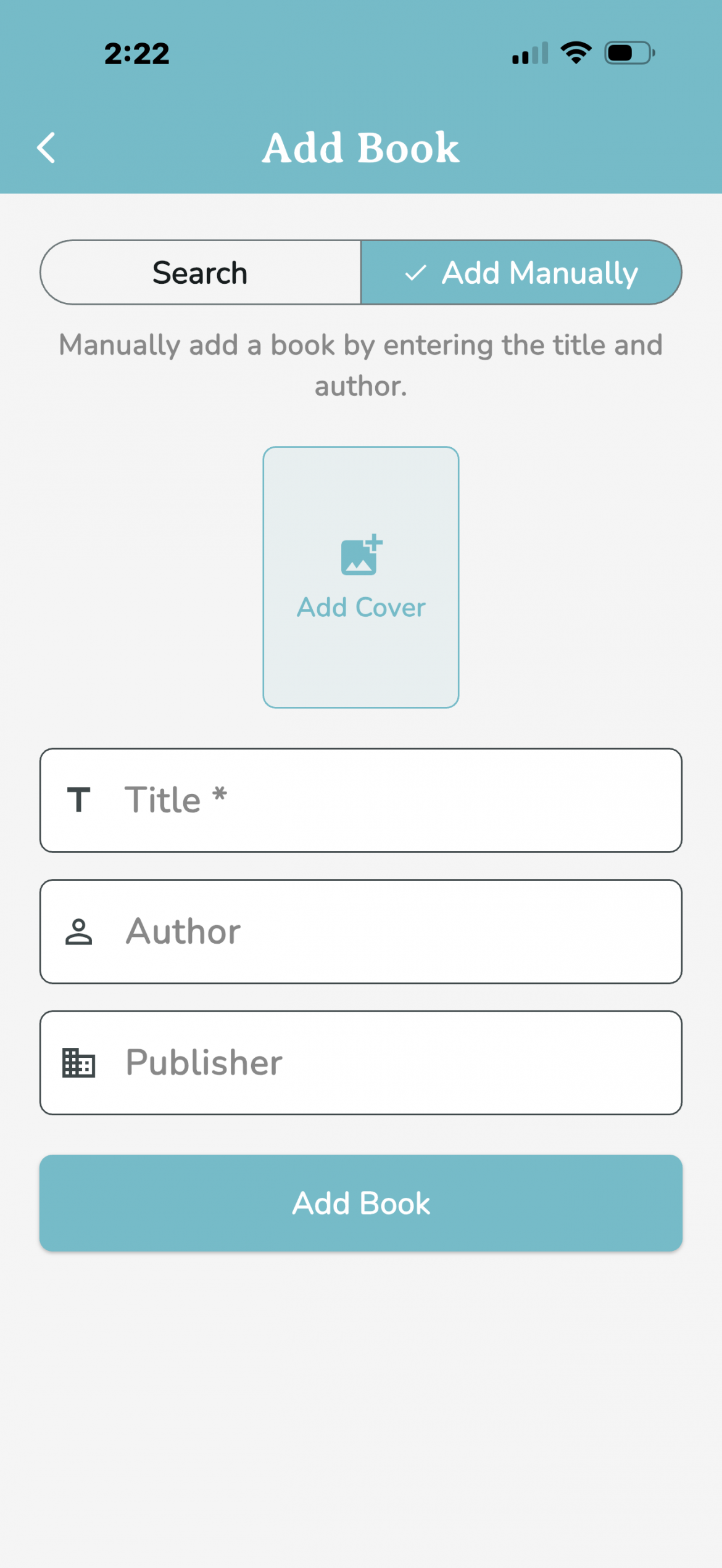 |
If you cannot locate a book through the Search and/or Scan feature, you can always add the book manually. Simply, tap on “Add Book Manually” and you will then be prompted to add the Title, Author (optional), and Publisher (optional) information for the book.
You can also take a picture of the book by tapping the Camera icon.
After you enter the details and add the picture, simply tap “Add Book Manually”.
Note: This is not the preferred method |
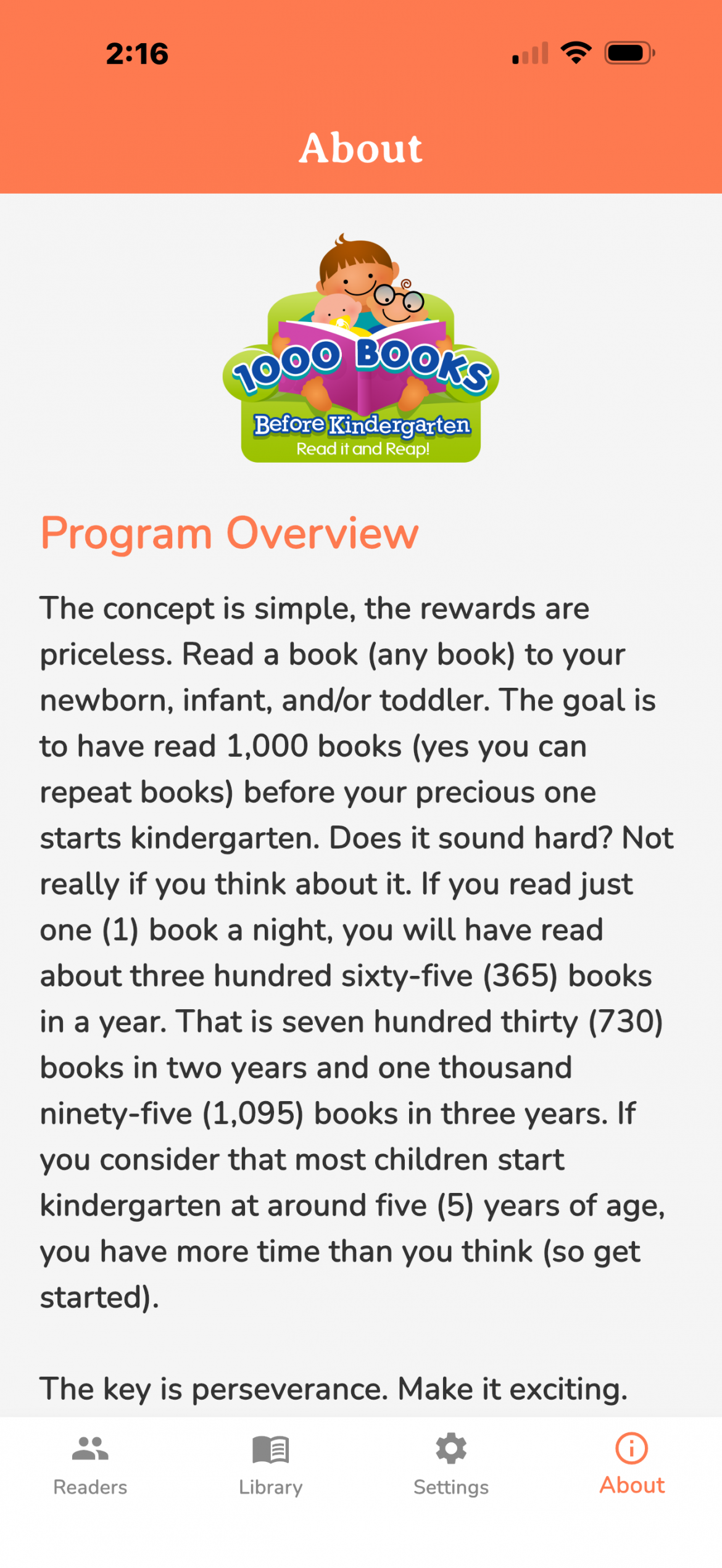 |
“About” This tab will display information about the 1000 Books Before Kindergarten Challenge.
Please keep in mind that the objectives of the 1000 Books Before Kindergarten challenge are: · to promote reading to newborns, infants, and toddlers · to encourage parent and child bonding through reading
|
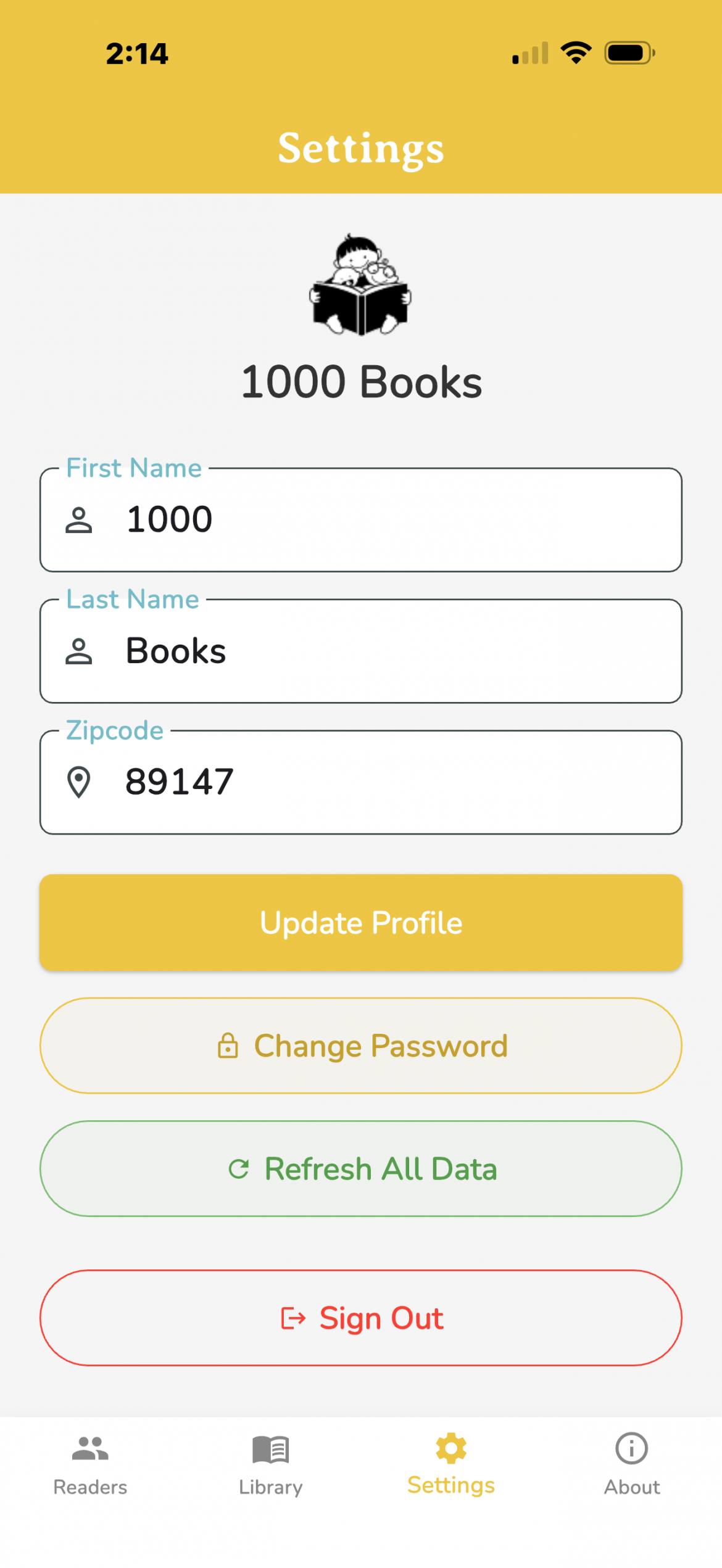 |
“Settings” This tab will bring up information about your account. |
| The App relies on caching locally to interact with the data quickly – meaning, changes are made to the cache so they can display quickly while the update to the backend is deferred. There may be a bug from a user where the cache doesn’t reflect changes for one reason or another, but the Developer has put some methods in to the App so that the cache is cleared upon starting up the App. Then the latest greatest info from the backend is pulled down and cached. The App is built to keep the cache and backend in sync as much as possible, but if a user runs into a problem (e.g., background photo isn’t updated, a book I read doesn’t show up, etc.), the first thing to sign-out of the App and restart it. Hopefully sync issues don’t happen, but Signing-Out of the App is the failsafe. |
| Please email: contact@1000BooksFoundation.org with any further questions about the iPhone and/or Android App. |